
MagicMiner MO01 Touchscreen Malfunction and Firmware Upgrade Troubleshooting Guide
Problem Overview
Recently, some MagicMiner MO01 users have reported the following abnormal behaviors on their devices:
The touchscreen is unresponsive or responds with significant delay, making local operations impossible;
On-screen information (e.g., hash rate, earnings, system time) fails to update;
Even in screensaver mode, the displayed system time lags noticeably;
Rebooting the device multiple times does not resolve the issue, rendering the device essentially unusable.
This article is based on actual user cases and provides a structured troubleshooting workflow and final resolution for users encountering similar problems.
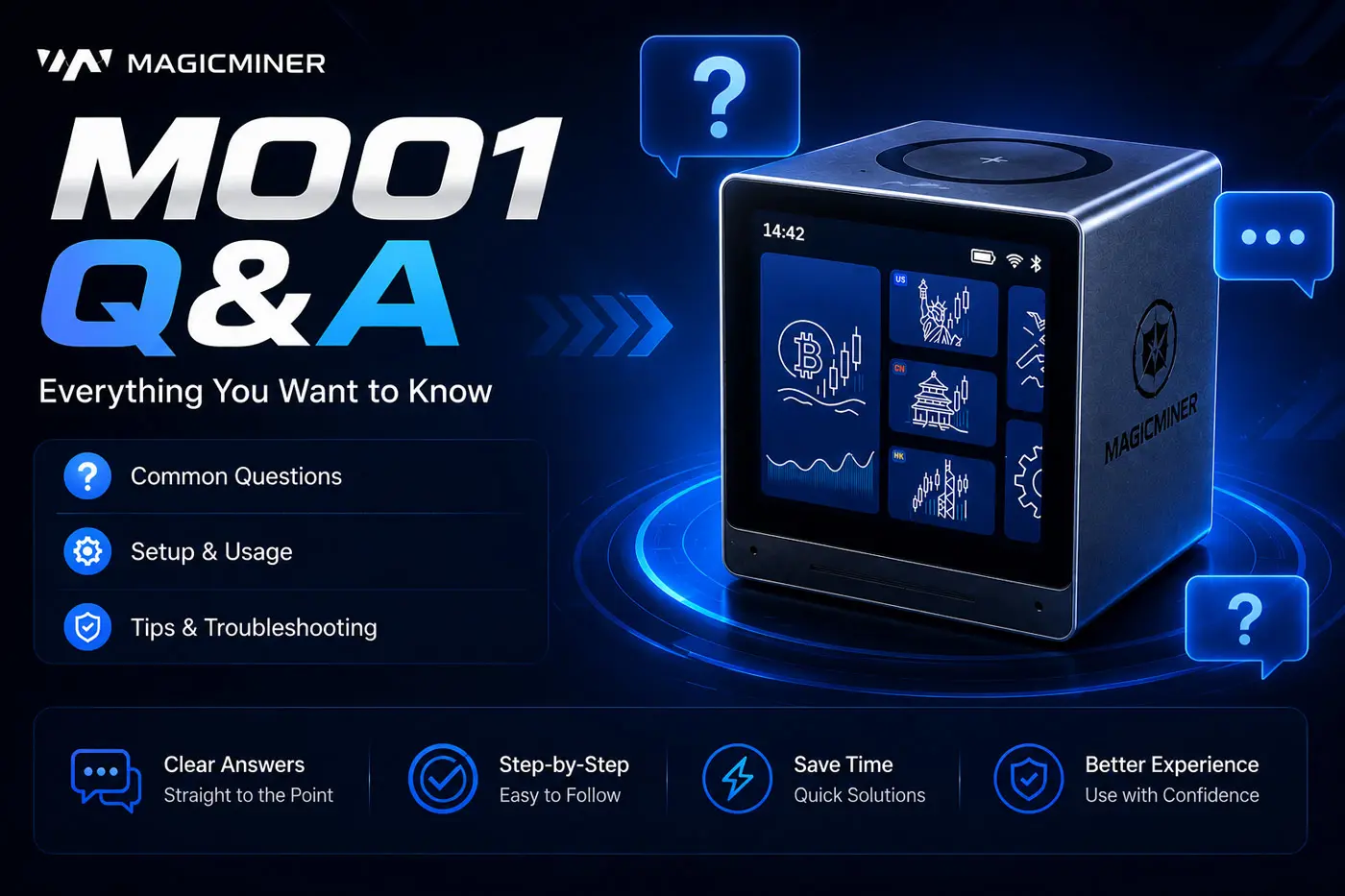
Troubleshooting and Resolution Process
Phase 1: Initial Diagnosis and Recommendations
When the device exhibits touchscreen malfunction and system lag, the first recommended step is to perform a firmware upgrade via the Web backend to rule out software-level anomalies.
Procedure:
Ensure the MO01 device is on the same local network as your computer or mobile device;
Enter the device’s IP address in a browser to access the Web management backend;
Log in using the default credentials: Username
root, Passwordroot;Navigate to the firmware upgrade page and upload
step1.zipfollowed bystep2.zip, allowing the device to reboot automatically after each step.
Important Notes:
Confirm that you have obtained the complete firmware upgrade files (
step1.zipandstep2.zip). If you have not received them or cannot download them, please contact official technical support.Do not disconnect power or refresh the browser page during the upgrade process to avoid device damage.
Phase 2: Common Upload Failure Causes and Remedies
In some cases, users receive a direct “Upload Failed!” error when attempting to upload step1.zip via the Web backend. The following steps can help diagnose and resolve this issue:
Possible Causes:
Unstable network connection causing file transmission interruptions;
Browser cache or compatibility issues affecting the upload process;
The device system failing to correctly recognize the uploaded file.
Remedies:
Refresh the Web page, or restart the device and attempt the upload again;
Try a different browser (Chrome or Edge latest version is recommended);
If
step1.zipcontinues to fail after multiple attempts, you may skip this step and uploadstep2.zipdirectly.
Verification Method: Log in to the Web backend, go to Settings → Device Info → Software Version. If the last three digits are1.1.1, the upgrade was successful. If they are1.0.8or1.0.9, the device is still on the old version and the upgrade process must be completed.
Phase 3: Alternative Upgrade Sequence (Step2 / Step3 Combination)
If the standard step1 → step2 process cannot be completed, the technical support team offers two alternative upgrade sequences:
Option A (Step3 first, then Step2): Upload
step3.zipfirst, then immediately uploadstep2.zip;Option B (Step2 first, then Step3): Upload
step2.zipfirst, then immediately uploadstep3.zip.
Users may choose either option based on their specific situation. It is strongly recommended to review the official video tutorials before proceeding to ensure accurate execution.
Phase 4: Specific Issue — 72% Upload Stalling
In certain cases, when following the step3 → step2 sequence, step3.zip uploads successfully, but the upload of step2.zip consistently stalls at 72%. The device then freezes and requires a power cycle (unplug and replug) to recover.
Root Cause Analysis:
Compatibility conflicts may exist between the local Web upgrade mechanism and the device’s current system version;
The
step2.zipupgrade package may trigger abnormal responses under specific system environments;Repeated upgrade attempts may have caused temporary anomalies in the device’s storage or system partitions.
Recommended Action:
At this point, repeated attempts at local Web upgrades are not recommended, as they may cause further instability. Instead, an alternative solution should be initiated.
Phase 5: Final Solution — Server-Side Upgrade
When local Web upgrades fail to complete, the server-side upgrade is the recommended final solution. This method does not rely on the local Web upload process—instead, the official server pushes the update directly to the device, effectively bypassing local environment and file compatibility issues.
Procedure:
Ensure the device is connected to the internet;
Follow the official
MO01-operate-upgrade.mp4video tutorial to execute the server-side upgrade operation;Wait for the device to automatically receive and install the update. Do not disconnect power during this process;
Once the upgrade is complete, the device will reboot automatically and display a new interface.
Final Outcome:
In the actual case documented here, after completing the server-side upgrade:
The touchscreen resumed normal responsiveness;
On-screen information updated in real time;
System time lag was eliminated;
The device operated smoothly and returned to full functionality.
Phase 6: Post-Server Upgrade Verification and Supplementary Firmware Upgrade
After completing the server-side upgrade, the following verification should be performed to ensure the issue is fully resolved:
Verification Steps:
Check the software version via the Web backend (Settings → Device Info → Software Version);
Verify whether the touchscreen is now responsive and whether on-screen data updates correctly.
Further Actions:
If the version has been updated and all functions are normal: No further action is required. The device is now running the latest system version.
If the touchscreen or other functions remain abnormal after the server-side upgrade: A local Web firmware upgrade should be performed as a supplementary measure. This two-stage approach (server-side first, then local firmware) helps resolve discrepancies between the firmware and server versions, which is the most likely root cause of touchscreen abnormalities.
Root Cause Analysis:
The most probable underlying cause of this issue is a mismatch between the firmware version and the server version. When these two components are out of sync, system components such as the touchscreen driver may fail to initialize or communicate correctly, resulting in unresponsive behavior. The server-side upgrade brings the device to a compatible baseline, and if residual inconsistencies remain, the local firmware upgrade serves as a precise calibration step to fully resolve the issue.
Summary
Touchscreen malfunction and system lag on the MagicMiner MO01 are typically caused by software abnormalities rather than hardware failures. Through a systematic firmware upgrade process, the vast majority of cases can be resolved. If the standard Web upgrade process is obstructed, it is recommended to follow this sequential approach:
Check network and browser environments, and re-upload the upgrade files;
Attempt the
step2/step3combination upgrade sequence;If local upgrades continue to fail, prioritize server-side upgrade as the primary solution;
After completing the server-side upgrade, verify device functionality. If issues persist, perform a local firmware upgrade to ensure full version alignment.
Frequently Asked Questions (FAQ)
Q1: How can I find my device’s IP address?
A: You can check the connected device list on your router’s management interface, or use a network scanning tool on your mobile device (e.g., Fing) to locate the MagicMiner device.
Q2: What happens if the device loses power during an upgrade?
A: Power loss during an upgrade may cause system corruption. Please ensure a stable power supply and do not remove power until the upgrade is fully complete.
Q3: After completing the server-side upgrade, do I still need to perform a local Web firmware upgrade?
A: It depends on the outcome. If the version has been updated and all functions work normally, no further action is required. However, if the server-side upgrade does not fully resolve the issue, a supplementary local firmware upgrade should be performed. The most likely root cause of the touchscreen abnormality is a mismatch between the firmware and server versions. The server-side upgrade brings the device to a compatible baseline, and the local firmware upgrade can then address any remaining inconsistencies.
Q4: What should I do if my issue is still unresolved?
A: Please report the specific symptoms and the steps you have attempted to the official technical support email (business@magicminer.cc). The technical team will provide further assistance.
For the upgrade of the MO01 server, please refer to this video
For firmware upgrade, please refer to this video.
This article is compiled based on real user cases and is intended to help MagicMiner MO01 users quickly resolve common firmware and touchscreen issues. For any questions, please contact official technical support.