How to Set Up Lucky Miner LV07 for Solo Mining (Step-by-Step)
Lucky Miner LV07 Setup: Solo Mining Guide for Beginners
You just got your Lucky Miner LV07, and now you’re staring at it, wondering where to start. That’s totally normal. We designed the LV07 as an entry-level SHA-256 miner for beginners, but if you’ve never set up a mining device before, the WiFi configuration and pool setup can feel a bit unfamiliar — because it’s not quite the same as connecting your phone to a home router.
This guide walks you through the entire Lucky Miner LV07 setup process, from unboxing to mining. No technical background is required. We built the LV07 for people who want to experience Bitcoin mining at home without dealing with industrial-grade equipment, so the setup itself is straightforward.
Step 1: Unboxing and Powering On
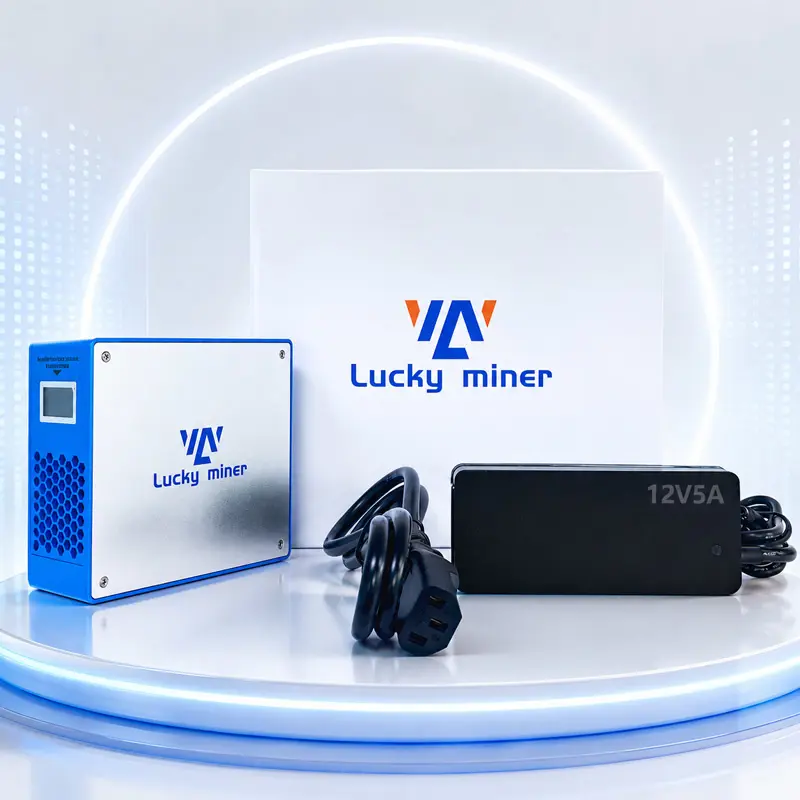
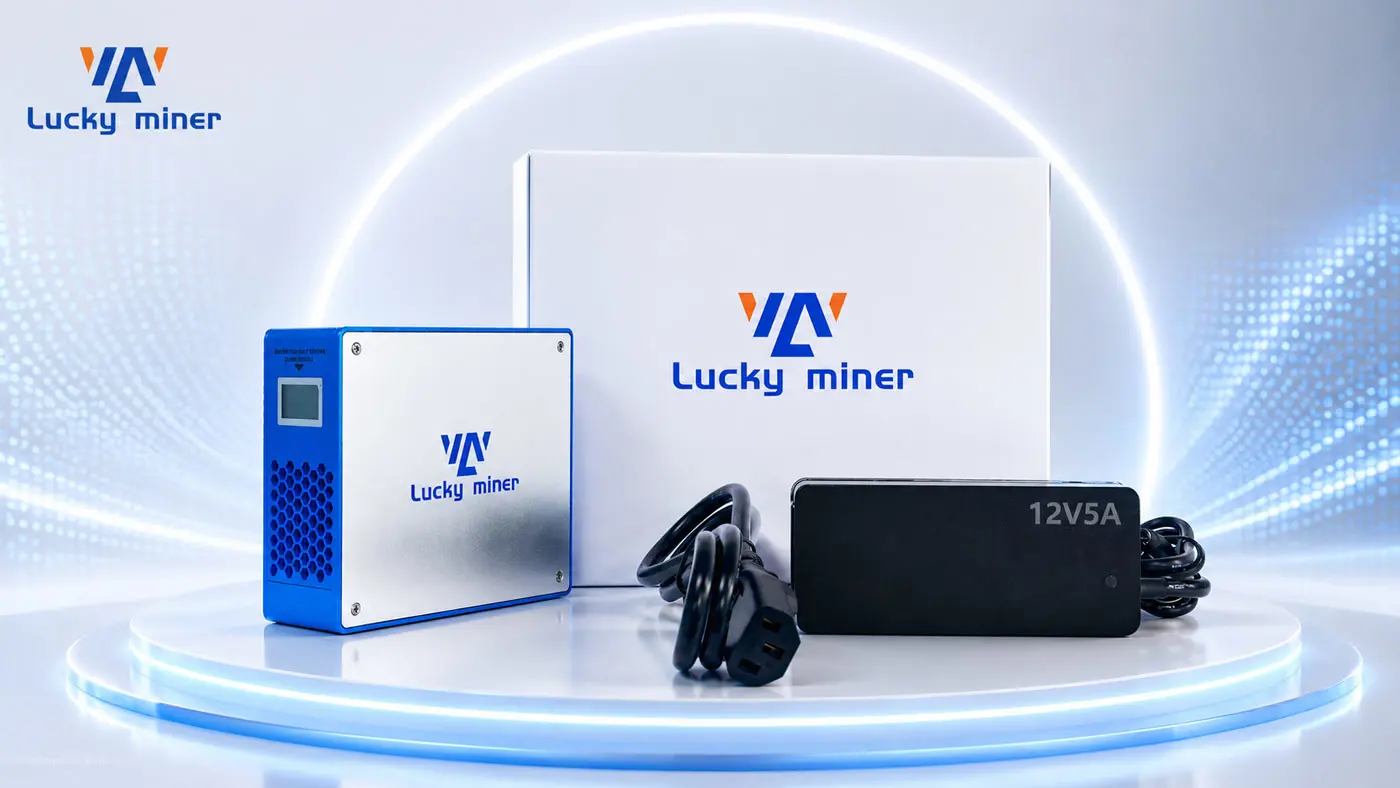
Inside the box, you’ll find three main items:
- LV07 miner unit
- 12V/5A power adapter
- AC power cord
Connecting everything is simple. Plug the AC cord into the adapter, then plug the adapter’s output cable into the DC port on the back of the miner. Finally, plug the adapter into a wall outlet.
Once you’ve powered it on, the fan starts spinning, and the screen displays: Connect to ssid: Lucky_****. This means the miner is running and waiting for you to connect to its built-in WiFi hotspot.
Step 2: Lucky Miner LV07 Setup – WiFi Hotspot Connection
This step is similar to connecting to a regular WiFi network, but there’s one important difference: you’re not connecting to your home router — you’re connecting to the miner itself, which broadcasts its own hotspot.
Here’s what to do:
- Open the WiFi settings on your phone or computer.
- Look for a network that starts with
Lucky_, such asLucky_F089. - Connect to it. No password is required.
After connecting, your phone or computer should automatically redirect to the miner’s configuration page. If it doesn’t, open your browser and enter 192.168.4.1.
This page is your control panel — you’ll do all the configuration here.
Step 3: Entering Pool and Wallet Details
Once you’re on the configuration page, you’ll see a few fields to fill out. For first-timers, this is usually where things get confusing.
You need to enter three things:
Pool URL. This tells your miner which pool to contribute its hashrate to. If you’re new, start with a public pool like public-pool.io:21496. If you’re interested in solo mining, you can also use pool.vkbit.com:3333.
Wallet Address. This is the Bitcoin address where your mining rewards will be sent. If you don’t have a Bitcoin wallet yet, you can create one on an exchange like Binance or OKX, or use a non-custodial wallet like Trust Wallet or Ledger. Make sure you’re using a BTC mainnet address, which typically starts with 1, 3, or bc1.
Worker Name. This can be anything you want. Just pick something you’ll recognize, like LV07-01.
After filling in these fields, click Save, then click Restart. The miner will connect to the pool you entered and begin mining.
Step 4: Checking Mining Status
After the restart, wait about 30 to 60 seconds. The dashboard homepage will show real-time mining data, including hashrate, shares submitted, and current power consumption.
The miner’s built-in screen will also scroll through this information, so you can glance at the device itself to see if it’s working normally.
If you want to check your earnings or status from the pool side, you can also log into the mining pool’s website or app and look up your wallet address.
Troubleshooting: Common Issues and Fixes
The miner connects to WiFi, but the hashrate stays at 0.
Three common reasons: first, double-check that the pool URL and port number are entered correctly — the same pool may have multiple ports for different difficulty levels. Second, confirm that your wallet address is a BTC mainnet address, not an address from another chain. Third, some pools have a minimum difficulty requirement. If the miner’s hashrate is too low, the pool won’t accept it. The LV07 runs at around 1 TH/s, so choose a pool with a low entry difficulty.
The miner is powered on, but the screen is off and the fan isn’t running.
First, check the indicator light on the power adapter. If it’s off, the adapter likely needs replacing. If the light is on but the miner still won’t respond, unplug it, wait a few seconds, and plug it back in. If that doesn’t help, reach out to our support team.
Can’t connect to the miner’s WiFi hotspot.
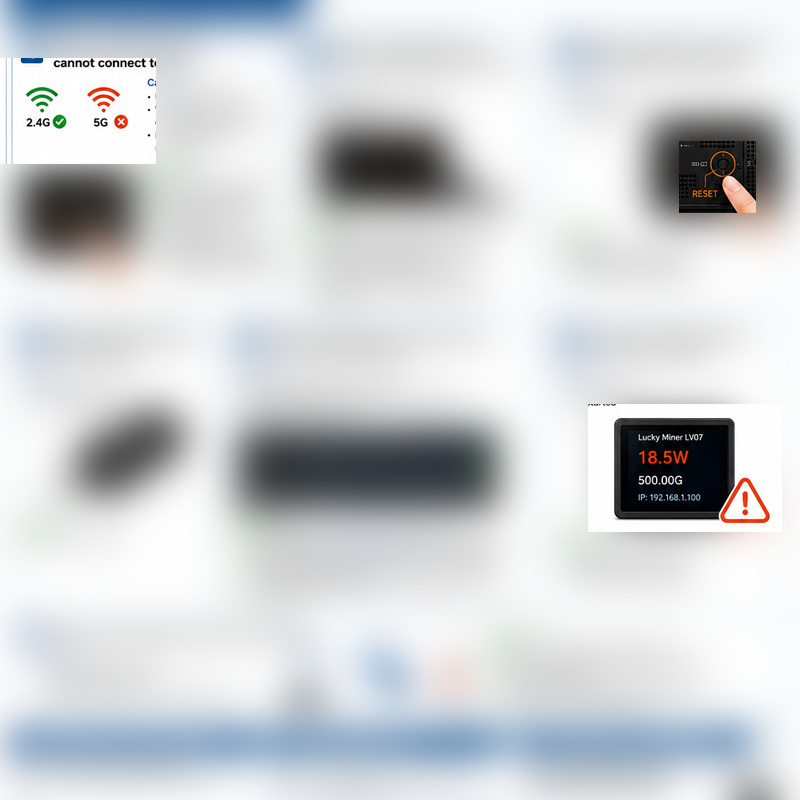
Make sure your phone or computer is connecting to a 2.4G WiFi network. The LV07 does not support 5G. Some devices may automatically prioritize 5G, which can prevent them from seeing the miner’s hotspot. Also, the hotspot name and password only support English letters and numbers. If you’ve changed the hotspot name, avoid using special characters.
Recommended Tuning Parameters
If you want to fine-tune the miner yourself, here are the official recommended settings for the LV07:
- Frequency: ≤ 575 MHz
- Core voltage: ≤ 1300 mV
These two parameters mainly affect power consumption and heat. If you notice power usage approaching 28W or more, try lowering the frequency or voltage gradually to keep the miner running more stably.
For most beginners, the default settings work just fine — you don’t need to touch these unless you’re comfortable experimenting.
Need Help? We’ve Got You Covered
If anything doesn’t go as expected, you’re not on your own. We have a full setup video on YouTube that walks through the entire Lucky Miner LV07 setup process step by step — it’s often easier to follow along visually than reading text alone. And if you’re still stuck, our online customer support team is available to help with any issues, whether it’s WiFi connection trouble, pool configuration questions, or something else.
Check the product manual that came with your LV07 for a QR code that links directly to the support page and video resources. It’s there to make your first mining experience as smooth as possible.
For more mining pool options, you can also check MiningPoolStats, a useful resource for finding pools that fit your hashrate.
Recommended Reading for Beginners
If you’re new to mining, you might also find these articles useful: